
Setting up your Google Mini setup is easier than you think. In this guide, I walk you through every step to get your smart speaker connected and ready for use. When I first got my Google Nest Mini (or Google Home Mini), the excitement of setting it up is real. This small smart speaker lets me control my home, play music, ask questions, and manage tasks—all with just my voice. However, before I can start saying “Hey Google,” I need to go through a simple setup process.
In this guide, I’ll walk through how I set up my Google Mini step by step, how to connect it to Wi-Fi, link it with apps, and customize it to match my lifestyle.
What You’ll Learn by Google Mini Setup
– What comes inside the Google Mini box
– How to set up Google Mini for the first time
– How to connect Google Mini to Wi-Fi
– How to link it with my Google account
– How to control smart devices using it
– How to personalize Google Assistant
– Common setup issues and quick fixes
– FAQs about Google Mini setup
What Comes in the Box
When I unbox my Google Mini, I usually find:
– The Google Nest Mini or Google Home Mini device
– A power adapter
– A quick start guide
It’s compact, simple, and easy to plug in. There’s no battery — so I always keep it connected to power during setup and use.
Step 1: Plug in My Google Mini
The first thing I do is plug my Google Mini into a wall socket using the provided power adapter. Once it’s connected, I see small lights glow on the top of the speaker, and within seconds, it greets me with a sound — that means it’s ready for setup.
Step 2: Download the Google Home App
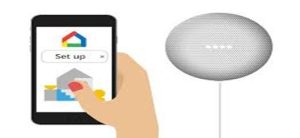
To set up my device, I need the Google Home app, which is available for both Android and iOS. I download it from the Play Store or App Store and sign in with my Google account.
Step 3: Add My Device in the Google Home App
Inside the Google Home app, I tap the “+” icon, select “Set up device,” and then “New device.” The app scans for nearby devices, and once my Mini appears, I select it to begin the setup.
Step 4: Connect to Wi-Fi
Next, I connect my Google Mini to my Wi-Fi network. I select the correct network, enter my password, and wait for it to connect. Once connected, the Assistant confirms it verbally.
Step 5: Link My Google Account
After Wi-Fi setup, I link my Google account. This step personalizes the experience, allowing my Mini to access calendars, reminders, and other Google services.
Step 6: Set Up Voice Match
I enable Voice Match so my Mini can recognize my voice. It helps the device provide personalized answers like my daily schedule, reminders, or contacts.
Step 7: Choose My Default Services
During setup, I can link music and video services like Spotify, YouTube Music, Netflix, and smart home apps. This allows me to control entertainment and devices by voice.
Step 8: Test My Google Mini
Once setup is complete, I test my Google Mini by asking questions or giving commands like ‘Hey Google, play music’ or ‘Hey Google, what’s the weather?’
Step 9: Control Smart Devices
After setup, I connect my smart home devices like lights, plugs, or thermostat to Google Mini through the Home app. Then I can control them easily using voice commands.
Step 10: Customize Settings
Inside the Home app, I can rename the device, set Night Mode, or create Routines like ‘Good morning’ or ‘Good night’ for a personalized experience.
Troubleshooting Common Setup Issues
- Device not showing up: I ensure Bluetooth is on and the phone is close to the device.
2. Wi-Fi failing: I check my password and try the 2.4GHz network.
3. Device not responding: I ensure the microphone switch is on.
4. Distorted sound: I reposition the device on a flat surface.
5. Stuck on connecting: Restarting the router and phone usually helps.
Quick Setup Checklist
✅ Plug in the power
✅ Install the Google Home app
✅ Add device → New device
✅ Connect to Wi-Fi
✅ Link Google account
✅ Enable Voice Match
✅ Link services
✅ Customize preferences
Frequently Asked Questions (FAQs)
- Q: Can I set up Google Mini without Wi-Fi?
A: No, Google Mini requires Wi-Fi to function and process voice commands.
- Q: Can I connect Google Mini to my phone via Bluetooth?
A: Yes, once setup is complete, I can pair my phone and play music through Bluetooth.
- Q: How do I reset my Google Mini?
A: I press and hold the reset button underneath the device for about 15 seconds until I hear a tone.
- Q: Can I use multiple Google Minis in different rooms?
A: Yes, I can set up several Minis and name them by room for easy control.
- Q: Can my Google Mini control other smart devices?
A: Yes, as long as they are compatible and connected through the Google Home app.
- Q: How do I change the Wi-Fi network on Google Mini?
A: I open the Home app, go to device settings → Wi-Fi → Forget → and reconnect to a new network.
Setting up my Google Mini is simple and rewarding. In just a few minutes, I can turn a small smart speaker into my personal assistant. Once connected to Wi-Fi and my Google account, I can play music, control smart home devices, and manage daily tasks hands-free. Following each step carefully ensures that my Google Mini delivers a smooth and smart experience every day.