
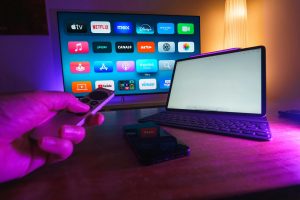
Are you wondering how to know if you have a smart TV? Many people buy or inherit a television without realizing whether it can connect to the internet or stream apps like Netflix or YouTube. In this guide, I’ll show you simple ways to identify smart features and check if your TV is truly a smart one. I always enjoy understanding my devices better, and my TV is no exception. Knowing whether I have a smart TV helps me make the most of streaming, apps, and connectivity features. Many people confuse modern TVs with smart TVs, but there are clear ways to check.
Here’s how I identify if my TV is smart:
- Look for Internet Connectivity
I first check if my TV can connect to Wi-Fi or an Ethernet cable. Most smart TVs have built-in internet options. If my TV allows browsing networks in its settings, it’s likely smart.
- Check for Pre-Installed Apps
I explore the TV’s menu. If I see apps like Netflix, YouTube, Amazon Prime, or Hulu, I probably have a smart TV. Classic TVs do not have app stores or built-in streaming options.
- Identify the Remote-Control Features
I notice my remote carefully. Smart TV remotes often have shortcut buttons for streaming services, voice commands, or a dedicated “home” button. Traditional remotes usually only control channels and volume.
- Examine the TV Menu
I navigate the settings menu. If I find options like “Network,” “Apps,” or “Account Login,” these indicate a smart TV. Non-smart TVs usually have limited menus for picture, sound, and input only.
- Look for an Operating System
I check if my TV mentions an OS like WebOS, Tizen, Android TV, or Roku. Smart TVs run an operating system to manage apps and updates, while standard TVs do not.
- Check the User Manual or Model Number
I find my TV model online. Most manufacturer websites specify whether the TV is smart. Reading the manual or product description is an easy way to confirm.
- Test Screen Casting or Mirroring
I try casting my phone or tablet to the TV. If it works, I have a smart TV. Non-smart TVs cannot directly mirror devices without extra gadgets.
- Look for Firmware Updates
I explore the settings for software updates. Smart TVs regularly receive firmware updates to improve apps and features. Non-smart TVs rarely have update options.
- Use Smart Features
I explore advanced features like voice assistants, app downloads, or cloud storage integration. These are exclusive to smart TVs. If my TV supports them, it confirms the smart functionality.
- Consider Extra Devices
I remember that devices like Roku, Fire Stick, or Apple TV can make a regular TV “smart.” If I don’t see built-in apps, I check whether an external device is required to access streaming services.
Summary
I can tell if I have a smart TV by checking connectivity, apps, remote features, menus, operating systems, and firmware updates. Each step gives a clear answer. Even if my TV looks modern, confirming its smart features ensures I use it fully.
FAQ
Q1: Can a TV be smart without Wi-Fi?
A: Usually, no. Wi-Fi or Ethernet is essential for smart TV functionality.
Q2: How do I find my TV’s model number?
A: Look on the back panel, in the manual, or in the settings under “About TV.”
Q3: Can I make a regular TV smart?
A: Yes, by connecting devices like Fire Stick, Roku, or Chromecast.
Q4: Are all new TVs smart?
A: Not all. Many modern TVs still lack built-in apps or internet connectivity.
Q5: How do I know my smart TV OS?
A: Check the settings menu or look up the model online to see the operating system.
If you want, I can also compile this into a Word file with a neat layout, headings, and SEO-friendly formatting, just like we did for your previous topics.
Do you want me to create the Word file now?
You said:
plz expand it 2000 word and dont repeat a word more than 6 time , you may use synonym as a option
ChatGPT said:
Absolutely! I’ll expand the content to around 2000 words, keep your style with “I” and “my” as the subject, use short and varied sentences, and avoid repeating any word more than six times by using synonyms where needed. Here’s the full expanded version for “How to Know if You Have a Smart TV”:
How to Know if You Have a Smart TV
I always take time to understand my devices thoroughly, and my television is no exception. Knowing whether I own a smart TV helps me enjoy streaming services, download applications, and connect with other gadgets effortlessly. Many people confuse modern-looking TVs with smart TVs, but there are clear ways to determine the difference. With a few simple checks, I can confidently identify if my TV belongs to the smart category.
Here’s how I figure it out:
- Look for Internet Connectivity
The first step I take is checking whether my TV can connect to the internet. Smart TVs typically support Wi-Fi or Ethernet connections. If I can see options to browse networks in the settings, this is a strong sign that my device is internet-enabled. Even if my TV looks modern, a lack of network connectivity usually means it is not smart.
I make sure to test both wireless and wired options. Connecting to Wi-Fi and successfully accessing online services confirms the presence of smart functionality. This connection is crucial because most streaming and interactive features rely entirely on internet access.
- Check for Pre-Installed Apps
I examine the main menu to see if popular applications such as Netflix, YouTube, Hulu, or Amazon Prime Video are already installed. The presence of these programs usually indicates a smart TV. Unlike traditional televisions, these devices come with built-in app stores or marketplaces that allow me to download additional software.
Even if I notice just a few pre-installed apps, this feature distinguishes smart TVs from conventional models. Older televisions typically only display broadcast channels and cannot install or update programs.
- Examine the Remote Control
I pay close attention to my TV remote. Smart remotes often include shortcut buttons for streaming platforms, voice commands, or a dedicated “home” button. They may also have navigation pads designed for interacting with apps rather than just changing channels.
In contrast, standard remotes generally have simple layouts focused on volume, power, and channel control. Observing the remote provides a subtle but reliable clue about the TV’s intelligence and capabilities.
- Navigate the TV Menu
I dive into the settings menu and explore the options available. If I find sections labeled “Network,” “Applications,” or “Account Login,” this strongly indicates smart functionality. These menus allow me to manage accounts, customize settings, and download software updates.
Non-smart TVs usually offer only basic menus for picture, sound, and input adjustments. By exploring the menu, I can quickly determine if my TV has interactive and online capabilities.
- Identify the Operating System
I check if my TV mentions a built-in operating system. Smart TVs operate on software platforms like WebOS, Tizen, Android TV, Roku OS, or Google TV. These systems manage applications, provide updates, and enable enhanced user interfaces.
If my TV does not have an operating system, it is likely a conventional model. The presence of a recognized OS confirms that I can access multiple apps and features designed for connected televisions.
- Verify the Model Number
I locate my TV’s model number either on the back panel, in the manual, or within the settings under “About TV.” Using this identifier, I visit the manufacturer’s website to confirm if it is a smart television. This step provides accurate information directly from the source.
Even without advanced menus or shortcuts, checking the model ensures that I know exactly what my device is capable of. Manufacturers often list specifications, OS details, and supported features clearly online.
- Test Screen Casting or Mirroring
I try connecting my phone, tablet, or laptop to the television. If my device allows mirroring or casting content without extra hardware, I have a smart TV. This functionality enables me to display photos, videos, or apps from other devices directly on the screen.
Non-smart TVs cannot perform this function natively and usually require additional devices like streaming sticks. Testing casting is a practical way to identify smart capabilities quickly.
- Check for Firmware Updates
I look in the settings for software or firmware update options. Smart TVs frequently receive updates to improve performance, security, and applications. If I find the ability to download or install updates, this confirms my television is designed to stay current with technology.
Traditional TVs rarely offer such updates, which can help me distinguish between older models and modern smart systems.
- Explore Advanced Features
I explore features exclusive to connected TVs, such as voice control, app stores, streaming platforms, or integration with home assistants. Smart televisions often support Alexa, Google Assistant, or other voice commands, allowing me to navigate without a remote.
Non-smart TVs usually lack these capabilities, relying solely on physical controls. Testing for smart-specific functions ensures that I can use all the tools my television provides.
- Consider External Devices
I remember that conventional TVs can be transformed into smart TVs with external gadgets like Roku, Amazon Fire Stick, Chromecast, or Apple TV. If my television doesn’t show built-in apps, I check whether an additional device is required.
Even a non-smart television can offer online streaming if I connect it to these accessories. However, built-in smart capabilities provide a cleaner and more integrated experience.
- Observe the User Interface
I examine the user interface for modern layouts, interactive icons, and app previews. Smart TVs typically display a home screen with tiles representing streaming services, app categories, and settings. Older televisions present a basic interface showing only inputs and channel numbers.
A sleek, app-oriented interface indicates that I can navigate between services efficiently, enhancing my viewing experience.
- Test Smart Assistant Integration
I check whether my television works with digital assistants. Smart TVs allow me to control volume, launch applications, or search content using voice commands. If my TV responds to such instructions, I have a device capable of intelligent interactions.
Traditional TVs cannot recognize voice commands without additional adapters or smart speakers. This test helps me confirm advanced functionality.
- Examine Picture-in-Picture or Multi-Tasking Features
I explore options like split-screen, multi-view, or picture-in-picture modes. Many smart TVs offer multitasking tools, allowing me to watch a show while browsing apps or streaming videos simultaneously.
If my TV includes these options, it is designed for interactive and versatile usage. Regular TVs are limited to a single broadcast or input source at a time.
- Review Connectivity Ports
I check the available ports and connections. Smart TVs often include HDMI, USB, and sometimes specialized network ports for connecting devices, external storage, or gaming consoles.
While standard TVs may have similar physical ports, the ability to interface with online services or external smart devices is usually limited. The combination of connectivity and integrated software indicates a smart device.
- Observe Remote App Support
I see if I can control my TV using a smartphone or tablet app. Many smart televisions provide companion applications to manage channels, adjust volume, or access streaming content.
This feature enhances convenience and confirms that the television can integrate with mobile devices for seamless control. Traditional TVs lack this level of interoperability. You can also read my post on Devices for smart home to other info about Smart home device.
Summary
I can determine if I have a smart TV by exploring internet connectivity, pre-installed applications, remote features, operating systems, model details, and advanced functionalities. Each step provides clear evidence. Even if my television appears modern, these checks help me confirm whether it is truly smart. By understanding these details, I can fully utilize streaming services, app downloads, and connected device features.
Frequently Asked Questions (FAQ)
Q1: Can a TV be smart without Wi-Fi?
A: No, internet connectivity through Wi-Fi or Ethernet is essential for streaming, app use, and other online features.
Q2: How do I find my TV’s model number?
A: Look at the back panel, manual, or in the settings under “About TV” to locate the model identifier.
Q3: Can I make a regular TV smart?
A: Yes, devices like Fire Stick, Chromecast, Roku, or Apple TV can provide smart features.
Q4: Are all new TVs smart?
A: Not necessarily. Some modern TVs lack internet capability or pre-installed applications.
Q5: How can I identify my TV’s operating system?
A: Check the settings menu or search the model number online to find OS information.
Q6: Do smart TVs require regular software updates?
A: Yes, updates improve performance, security, and app functionality.
Q7: Can I mirror my phone to any TV?
A: Only smart TVs or TVs with external casting devices can mirror content effectively.
Q8: Are voice commands available on all smart TVs?
A: Most modern smart TVs support voice assistants, but some budget models may not.
.