
Smart plugs are one of the most convenient smart home devices available today. They allow you to control lamps, fans, coffee makers, holiday lights, and many other appliances directly from your smartphone or through voice assistants. However, like any connected device, smart plugs can occasionally experience issues that affect their performance. If you’ve been searching for how to reset smart plug devices to fix connection problems, restore app control, or reconnect to a new Wi-Fi network, you’re not alone.
You may notice that your smart plug suddenly goes offline, stops responding to commands, or fails to connect properly after a router change. In many cases, a simple reset can resolve these issues and get the device working normally again without requiring advanced troubleshooting.
This comprehensive guide explains how to reset a smart plug, when a reset is necessary, different reset methods, common troubleshooting solutions, and practical tips to help keep your smart home running smoothly.
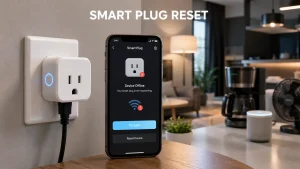
What Does Resetting a Smart Plug Mean?
Resetting a smart plug restores the device to either a refreshed operating state or its original factory settings, depending on the reset method used. The process clears temporary software issues, connection errors, and configuration problems that may prevent the device from functioning correctly.
A reset can be as simple as restarting the device without removing any settings, or it can completely erase all saved network information and return the plug to its factory condition. The type of reset required depends on the specific issue you’re experiencing.
Understanding the difference between these reset methods helps prevent unnecessary setup work and ensures you choose the most effective solution for your situation.
Why Resetting a Smart Plug Matters
Many smart plug problems are caused by temporary software glitches, network interruptions, firmware conflicts, or communication errors between the device and your home network. These issues can often make the plug appear defective even though the hardware is functioning normally.
Performing a reset gives the device an opportunity to restart its internal systems and establish fresh connections. This can restore communication with mobile apps, voice assistants, and cloud services without requiring replacement hardware.
Knowing how to properly reset a smart plug can save time, reduce frustration, and help avoid unnecessary troubleshooting steps when connectivity issues occur.
Key Benefits of Resetting a Smart Plug
Restores Wi-Fi Connectivity
One of the most common reasons people reset smart plugs is to resolve connection issues. If the device repeatedly disconnects from your network or refuses to reconnect after a router restart, a reset can often re-establish a stable connection.
A fresh setup allows the smart plug to reconnect using updated network settings and eliminates potential communication conflicts that may have developed over time.
Fixes App Communication Problems
Sometimes the smart plug appears online but fails to respond to commands sent from the mobile application. This issue can occur due to synchronization errors between the app, cloud server, and device.
Resetting the plug refreshes these communication pathways and often restores normal remote control functionality without additional troubleshooting.
Resolves Voice Assistant Issues
Smart plugs connected to voice assistants may occasionally stop responding to voice commands. Device synchronization errors, account linking issues, and software updates can all contribute to these problems.
A reset allows the device to reconnect properly and often restores compatibility with smart home ecosystems and voice control platforms.
Prepares the Device for a New Network
If you change internet providers, replace your router, or update your Wi-Fi credentials, your smart plug may no longer be able to connect using its previous settings.
Resetting removes old network information and allows the device to be configured for the new environment without compatibility issues.
Helps Before Selling or Giving Away the Device
When transferring ownership of a smart plug, a factory reset removes personal settings, account information, schedules, automation rules, and Wi-Fi credentials.
This ensures the new user receives a clean device and prevents unauthorized access to your smart home ecosystem.
Step-by-Step Guide: How to Reset Smart Plug
1. Identify Your Smart Plug Model
Before performing any reset procedure, it’s important to identify the exact smart plug model you own. Different manufacturers use slightly different reset methods, button locations, and LED indicator patterns.
Check the user manual, packaging, or product label to confirm the model number. Most manufacturers also provide reset instructions within their mobile applications or support documentation.
Taking a few moments to verify your device can help avoid confusion and ensure the reset process goes smoothly.
2. Perform a Soft Reset First
A soft reset is often the safest place to start because it does not erase saved settings or require you to reconnect the device afterward.
To perform a soft reset:
Unplug the smart plug from the outlet.
Wait approximately 15 to 30 seconds.
Plug the device back into power.
Allow it to restart completely.
Test functionality through the app.
This simple process refreshes the device’s internal software and may resolve minor connectivity problems without affecting existing configurations.
Pro Tip: Always try a soft reset before moving to more advanced troubleshooting methods. Many common issues can be resolved through a simple restart.
3. Locate the Reset Button
Most smart plugs include a dedicated power or reset button that controls the factory reset process. Depending on the manufacturer, the button may be located on the side, front, or top of the device.
Some models use the main power button for both everyday operation and resetting. Holding the button for a specific amount of time activates reset mode.
Take a moment to locate the button and ensure you can easily access it before proceeding with the next steps.
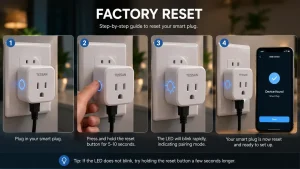
4. Start the Factory Reset Process
If a soft reset does not solve the problem, a factory reset may be necessary. This process removes stored Wi-Fi credentials, schedules, automation settings, and account information.
The general procedure is:
Plug the smart plug into a powered outlet.
Press and hold the reset button.
Continue holding for 5 to 15 seconds, depending on the manufacturer.
Watch for the LED indicator to begin blinking rapidly.
Release the button once the reset indicator appears.
After completion, the device returns to its original factory state and is ready for setup as a new device.
Expert Advice: Factory resets should only be performed when necessary because they require complete reconfiguration afterward.
5. Reconnect the Smart Plug After Resetting
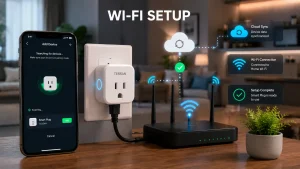
Once the factory reset is complete, the smart plug will enter pairing mode and wait for a new connection. In most cases, you’ll notice a blinking LED indicator that signals the device is ready to be configured again.
Open the manufacturer’s mobile application and select the option to add a new device. Follow the on-screen instructions carefully and ensure your smartphone is connected to the correct Wi-Fi network during setup. Most smart plugs are designed to work with 2.4 GHz networks, so double-check your router settings if the connection process fails.
After pairing is complete, test the smart plug by turning it on and off through the app. This simple verification helps confirm that the reset was successful and that communication has been fully restored.
Pro Tip: Rename the smart plug immediately after setup. Clear names like “Kitchen Lamp” or “Office Fan” make future management much easier, especially when using voice assistants.
6. Reset a Smart Plug Through the Mobile App
Some manufacturers provide built-in reset options directly within their applications. This method can be useful when the device is still accessible through the app but is experiencing unusual behavior.
The exact steps vary by brand, but the general process is similar:
- Open the smart plug app.
- Select the affected device.
- Navigate to device settings.
- Locate the reset or remove device option.
- Confirm the action.
- Follow the instructions to reconnect the device.
This approach is often more convenient than using physical buttons because it guides users through the process and may automatically prepare the device for reconnection.
However, if the smart plug is completely offline and no longer appears in the app, a manual factory reset is usually the better option.
7. How to Reset a Smart Plug Without a Reset Button
Not every smart plug includes a dedicated reset button. Some compact models rely on power cycling sequences or multifunction buttons to initiate a reset.
A common method involves:
- Unplugging the smart plug.
- Plugging it back in.
- Turning power on and off several times in a specific sequence.
- Waiting for the LED indicator to enter pairing mode.
Since these procedures differ between manufacturers, it’s important to review the instructions provided for your particular model.
If you’re unable to locate reset information, check the user manual or the manufacturer’s support resources before attempting random button combinations that may not work correctly.
Expert Advice: Keep a digital copy of your smart plug’s manual stored on your phone or computer. It can save significant time when troubleshooting future issues.
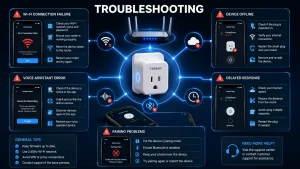
Troubleshooting Common Smart Plug Reset Problems
1. Smart Plug Won’t Enter Reset Mode
Cause: Sometimes users hold the reset button for too short a period or release it before the reset sequence begins. In other cases, the button may not register properly due to power interruptions or internal software issues.
Solution: Ensure the smart plug is receiving power and carefully hold the reset button for the duration recommended by the manufacturer. Watch the LED indicator closely because blinking patterns often confirm whether reset mode has been activated successfully.
If the problem persists, unplug the device, wait 30 seconds, reconnect power, and attempt the reset procedure again.
2. Smart Plug Won’t Reconnect to Wi-Fi
Cause: This is one of the most common issues users face after a factory reset. Incorrect passwords, weak signals, router settings, and unsupported network frequencies can all prevent successful pairing.
Solution: Verify that you’re connecting to a 2.4 GHz Wi-Fi network if required by the device. Double-check the network password and move closer to the router during setup. Restarting both the router and smart plug often improves the pairing process.
Many connectivity problems can be resolved simply by beginning the setup process from the start with fresh network information.
3. Device Keeps Going Offline
Cause: A smart plug that repeatedly disconnects may be experiencing unstable Wi-Fi coverage, firmware issues, router conflicts, or temporary internet interruptions.
Solution: Check signal strength in the area where the smart plug is installed. Consider repositioning the router or adding a Wi-Fi extender if coverage is weak. Updating firmware can also improve stability and reduce unexpected disconnections.
Monitoring the device for several days after a reset can help determine whether the issue has been fully resolved.
4. Smart Plug Is Not Detected During Setup
Cause: Sometimes the smart plug successfully resets but fails to appear in the device discovery process. This may occur if pairing mode expires, Bluetooth permissions are disabled, or the app is outdated.
Solution: Restart the setup process and confirm that the LED indicator is blinking in pairing mode. Update the mobile application to the latest version and grant any requested permissions. If necessary, repeat the factory reset and try again.
Patience is important here because some devices require multiple attempts before pairing successfully.
5. Voice Assistant No Longer Recognizes the Device
Cause: After a factory reset, previous integrations with voice assistants are often removed. As a result, voice commands may stop working even though the smart plug itself is functioning properly.
Solution: Open your voice assistant application and remove any outdated device entries. Reconnect the smart plug account and perform a new device discovery process. Once synchronization is complete, voice commands should begin working normally again.
Pro Tip: After reconnecting, test several voice commands immediately to verify proper integration before relying on automation routines.
Smart Plug Tips for Better Performance
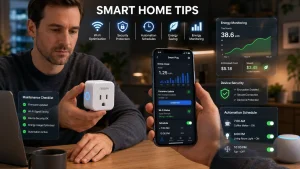
Maintain Strong Network Coverage
Reliable connectivity remains one of the most important factors affecting smart plug performance. Even the best devices can experience delays, missed commands, and disconnections when Wi-Fi coverage is inconsistent.
Position your router in a central location whenever possible and avoid placing smart plugs in areas with significant signal interference. Consistent network quality reduces the likelihood of future resets and troubleshooting sessions.
Keep Firmware Updated
Firmware updates often include security improvements, bug fixes, and compatibility enhancements that help smart plugs operate more reliably.
Many users ignore update notifications, but keeping software current can prevent a wide range of connectivity and performance issues. Check periodically for updates and install them when available.
Avoid Overloading the Device
Every smart plug has electrical limitations. Connecting devices that exceed the recommended wattage can lead to overheating, reduced lifespan, or unreliable operation.
Always review the manufacturer’s specifications before connecting high-power appliances. Staying within the rated limits helps ensure safe and dependable performance.
Organize Automation Routines
As smart homes grow, automation schedules can become increasingly complex. Periodically reviewing your routines helps eliminate unnecessary rules that may create unexpected behavior.
A well-organized automation system makes troubleshooting easier and improves the overall smart home experience.
Restart Devices Occasionally
Although smart plugs are designed for continuous operation, occasional restarts can help refresh internal processes and maintain responsiveness.
A simple power cycle every few months may prevent minor software issues from developing into larger problems later on.
Expert Advice & Safety Recommendations
Follow the Manufacturer’s Instructions
Although most smart plugs use similar reset procedures, there can be important differences between brands and models. Some devices require a 5-second button press, while others may require 10 to 15 seconds to enter reset mode.
Before performing a factory reset, take a few minutes to review the user manual or official support documentation. Following the correct procedure helps prevent unnecessary setup issues and ensures the device resets properly.
Use Secure Wi-Fi Credentials
After resetting and reconnecting your smart plug, it’s a good idea to review your network security settings. Since smart plugs communicate through your home network, weak passwords can increase the risk of unauthorized access.
Use a strong Wi-Fi password, enable available router security features, and keep your networking equipment updated. These simple precautions help protect both your smart plug and other connected devices.
Avoid Frequent Factory Resets
Factory resets are useful troubleshooting tools, but they shouldn’t be your first solution for every problem. Repeatedly erasing and reconfiguring devices can become time-consuming and may not address the underlying cause.
Whenever possible, start with simpler solutions such as restarting the plug, rebooting the router, checking firmware updates, or verifying app settings before performing a full reset.
Inspect the Device Regularly
Smart plugs are designed for long-term use, but occasional inspections can help identify potential issues before they become serious. Look for signs of overheating, discoloration, loose connections, unusual odors, or physical damage.
If you notice anything unusual, disconnect the device and investigate the cause before continuing to use it. Early detection can improve safety and extend the lifespan of your equipment.
Keep Smart Home Integrations Organized
Many users connect smart plugs to automation platforms, voice assistants, schedules, and routines. Over time, outdated automations can create conflicts that make troubleshooting more difficult.
Review your connected services periodically and remove unused integrations. A clean and organized smart home setup improves reliability and makes future troubleshooting much easier.
Expert Advice: Most smart plug problems are related to network connectivity rather than hardware failure. Before replacing a device, perform a proper reset and review your Wi-Fi environment. In many cases, this resolves the issue completely.
Conclusion
Knowing how to reset a smart plug is an essential skill for anyone using smart home technology. Whether you’re dealing with Wi-Fi connection problems, unresponsive app controls, failed voice assistant integrations, or a device that constantly appears offline, a proper reset can often restore normal operation quickly.
The process typically begins with a simple soft reset and progresses to a factory reset only when necessary. By understanding the different reset methods and following the correct setup procedures afterward, you can resolve many common issues without replacing the device.
Regular maintenance, firmware updates, strong Wi-Fi coverage, and organized automation routines can also reduce the likelihood of future problems. With the right approach, your smart plug can continue delivering reliable performance and convenient home automation for years to come.
FAQs: How to Reset Smart Plug
1. How do I reset my smart plug?
Press and hold the reset button for 5 to 15 seconds until the LED light starts blinking. The device will enter pairing mode and can be set up again through the app.
2. Will resetting a smart plug erase my settings?
A factory reset removes saved Wi-Fi settings, schedules, and automation rules. A soft reset usually keeps your existing settings intact.
3. Why won’t my smart plug connect after a reset?
This is often caused by incorrect Wi-Fi credentials, weak signal strength, or using an unsupported network frequency such as 5 GHz.
4. How long does it take to reset a smart plug?
Most smart plugs reset within a minute. The setup process afterward may take a few additional minutes.
5. Can I reset a smart plug without the app?
Yes. Most models can be reset directly using the physical reset button on the device.
6. What should I do if the reset button isn’t working?
Make sure the smart plug is powered on and hold the button for the recommended time. If it still doesn’t work, restart the device and try again.
7. Does resetting fix an offline smart plug?
In many cases, yes. Resetting can restore communication between the smart plug, app, and Wi-Fi network.
8. Can I connect my smart plug to a new Wi-Fi network after resetting?
Yes. A factory reset removes old network settings and allows the device to be connected to a new network.
9. Is it safe to reset a smart plug frequently?
Occasional resets are safe. However, repeated resets may indicate a deeper network or device issue.
10. When should I perform a factory reset?
Use a factory reset when changing Wi-Fi networks, troubleshooting persistent issues, or preparing the device for a new user.