
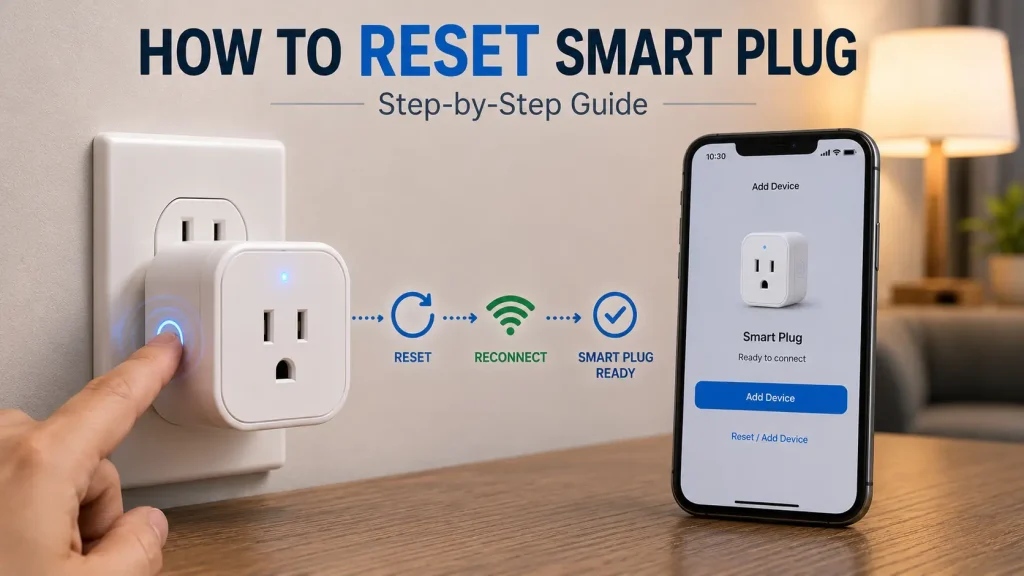
Smart plugs are designed to make everyday appliances smarter, allowing you to control devices remotely, create schedules, and automate routines. However, like any connected device, they can occasionally stop working properly. If your smart plug won’t connect to Wi-Fi, appears offline, or refuses to respond to commands, learning how to reset smart plug devices is often the quickest solution. Connection issues can occur after changing your Wi-Fi network, experiencing a power outage, or updating the device’s firmware, making a reset an effective way to restore normal functionality.
In this guide, you’ll learn when a reset is necessary, what happens during the process, and how to reconnect your device afterward. Whether you’re troubleshooting connection issues or preparing your smart plug for a new network, these step-by-step instructions will help restore normal operation quickly and safely.
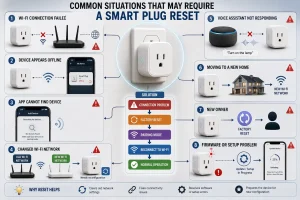
Table of Contents
- Why You May Need to Reset a Smart Plug
- Things to Check Before Resetting
- How to Reset a Smart Plug
- What Happens After Resetting
- How to Reconnect Your Smart Plug
- Common Problems After Resetting
- Tips to Prevent Future Issues
- Frequently Asked Questions
Why You May Need to Reset a Smart Plug
A smart plug stores information about your Wi-Fi network, mobile app, and automation settings. If any of this information becomes outdated or corrupted, the device may stop functioning correctly.
Resetting the smart plug removes the existing connection settings, allowing you to set it up again as if it were brand new.
You may need to reset your smart plug if:
- It won’t connect to your Wi-Fi network.
- The companion app cannot find the device.
- The smart plug appears offline.
- Voice assistants stop responding.
- You changed your Wi-Fi router or network name.
- You’re moving the device to another home.
- You want to give the smart plug to someone else.
- Firmware updates caused unexpected connection problems.
If you’re unfamiliar with how these devices operate, it’s helpful to first understand smart plugs before attempting advanced troubleshooting.
Things to Check Before Resetting
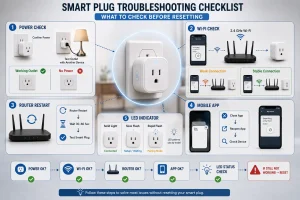
Although resetting often fixes connection issues, it should usually be your last troubleshooting step. There are several quick checks that may solve the problem without deleting your settings.
Confirm the Plug Has Power
Make sure the smart plug is fully inserted into a working wall outlet. If possible, test the outlet using another electrical device.
Verify Your Wi-Fi Connection
Many smart plugs only support 2.4 GHz Wi-Fi networks. If your phone is connected to a 5 GHz network during setup, the device may fail to connect.
Also confirm that your internet connection is working normally before performing a reset.
Restart Your Router
Temporary network issues can prevent communication between your router and the smart plug. Restarting your router often restores the connection within a few minutes.
Close and Reopen the Mobile App
Sometimes the issue is with the app rather than the smart plug itself. Force close the app, reopen it, and check whether the device reconnects automatically.
Check the LED Indicator
Most smart plugs use an LED light to display their current status. A solid light, slow blinking light, or rapidly flashing light usually indicates different operating modes. Consult your manufacturer’s instructions if you’re unsure what the light pattern means.
If none of these checks solve the problem, resetting the device is the next step.
How to Reset a Smart Plug
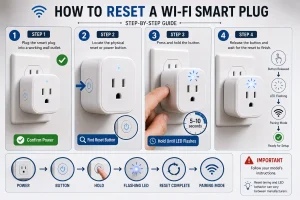
Although reset methods vary slightly between brands, the process is very similar for most Wi-Fi smart plugs.
Step 1: Plug the Smart Plug Into a Working Outlet
Begin by plugging the smart plug into a wall outlet that you know is working properly. Make sure the device has power before starting the reset process.
Step 2: Find the Reset or Power Button
Most smart plugs have a single button that functions as both the power switch and reset button. Depending on the model, it may be located on the side, front, or top of the device.
Step 3: Press and Hold the Button
Press and hold the button for approximately 5 to 10 seconds. Continue holding it until the LED indicator starts flashing rapidly.
The flashing light usually means the smart plug has entered pairing mode and the previous settings have been erased.
Step 4: Wait for the Reset to Finish
Release the button and allow the device a few seconds to complete the reset process.
Once finished, the smart plug is ready to be connected to your Wi-Fi network again.
What Happens After Resetting?
A factory reset removes the settings stored on the smart plug. This typically includes:
- Saved Wi-Fi network information
- Device pairing with your mobile app
- Voice assistant connections
- Automation routines and schedules
- Device name and room assignments
The reset does not damage the hardware. It simply returns the smart plug to its original factory settings so it can be configured again.
How to Reconnect Your Smart Plug
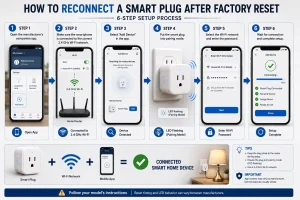
After resetting, you’ll need to pair the smart plug with your home network again.
Open the Companion App
Launch the manufacturer’s app on your smartphone or tablet. Make sure you’re signed in to the correct account.
Connect to the Correct Wi-Fi Network
Before adding the device, confirm that your phone is connected to the same 2.4 GHz Wi-Fi network supported by your smart plug.
Add a New Device
Select the option to add a new device in the app and follow the on-screen instructions.
Most apps automatically detect the smart plug while it is in pairing mode.
Complete the Setup
Choose your Wi-Fi network, enter the password, and wait for the app to finish connecting the device.
Once setup is complete, you can rename the smart plug, assign it to a room, and recreate any schedules or automations you previously used.
If you’re interested in understanding why this setup process works, our guide on how smart plugs work explains how smart plugs communicate with your Wi-Fi network and mobile app.
Common Problems After Resetting
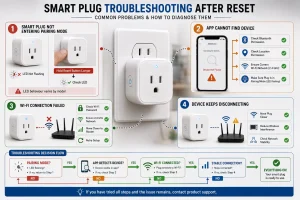
Occasionally, a smart plug may still fail to connect even after a successful reset. In most cases, the issue is related to the network or setup process rather than the device itself.
The Smart Plug Isn’t Entering Pairing Mode
If the LED never begins flashing, try holding the reset button for a few more seconds. Some models require up to 15 seconds before initiating a factory reset.
The App Cannot Find the Device
Check that Bluetooth or location permissions are enabled if required by the companion app. Also verify that your phone is connected to the correct Wi-Fi network.
Wi-Fi Connection Fails
Double-check your Wi-Fi password and ensure the router is broadcasting a 2.4 GHz network. Many smart plugs cannot connect to 5 GHz-only networks.
The device keeps disconnecting
If the smart plug repeatedly goes offline, move it closer to your router or reduce interference from walls and other wireless devices. A stronger signal often improves reliability.
Tips to Prevent Future Reset Issues
Although resetting is a useful troubleshooting method, frequent resets shouldn’t be necessary. A few simple practices can help keep your smart plug running smoothly.
- Keep your router firmware updated.
- Maintain a stable Wi-Fi connection.
- Avoid unplugging the smart plug frequently.
- Install firmware updates provided by the manufacturer.
- Use strong but stable Wi-Fi settings.
- Rename devices clearly if you use multiple smart plugs.
- Back up your automation routines if your app supports it.
Following these habits can reduce connection problems and minimize the need for future resets.
Frequently Asked Questions
Can I reset a smart plug without the app?
Yes. Most smart plugs can be reset using the physical reset or power button on the device. After the reset, you’ll need the companion app to reconnect the smart plug to your Wi-Fi network.
Will resetting a smart plug delete my schedules?
Yes. A factory reset removes saved schedules, timers, automation routines, and Wi-Fi settings. You’ll need to recreate them after setting up the device again.
How long does it take to reset a smart plug?
For most models, the reset process takes less than a minute. Holding the reset button for 5 to 10 seconds is usually enough to restore factory settings.
Why won’t my smart plug reconnect after resetting?
The most common reasons include connecting to a 5 GHz Wi-Fi network instead of a supported 2.4 GHz network, entering an incorrect Wi-Fi password, or placing the smart plug too far from the router.
Is resetting the same as turning the smart plug off?
No. Turning the smart plug off only cuts power to the connected appliance. Resetting erases the device’s saved settings and restores it to factory defaults.
Should I reset my smart plug regularly?
No. Resetting should only be used when troubleshooting connection problems, changing Wi-Fi networks, or preparing the device for a new owner.
Final Thoughts
Knowing how to reset a smart plug can save time when connection problems occur. Whether the device won’t connect to Wi-Fi, appears offline, or needs to be paired with a new network, a factory reset often restores normal operation in just a few minutes.
Before performing a reset, it’s worth checking your power source, Wi-Fi connection, and companion app, as many common issues can be resolved without erasing the device. If a reset is necessary, following the correct steps ensures the smart plug is ready to reconnect quickly and continue supporting your smart home routines.
If you’re just getting started with smart home devices, you may also find our guides on What Is a Smart Plug and How Do Smart Plugs Work helpful for understanding how these devices operate and how to get the most from them.