
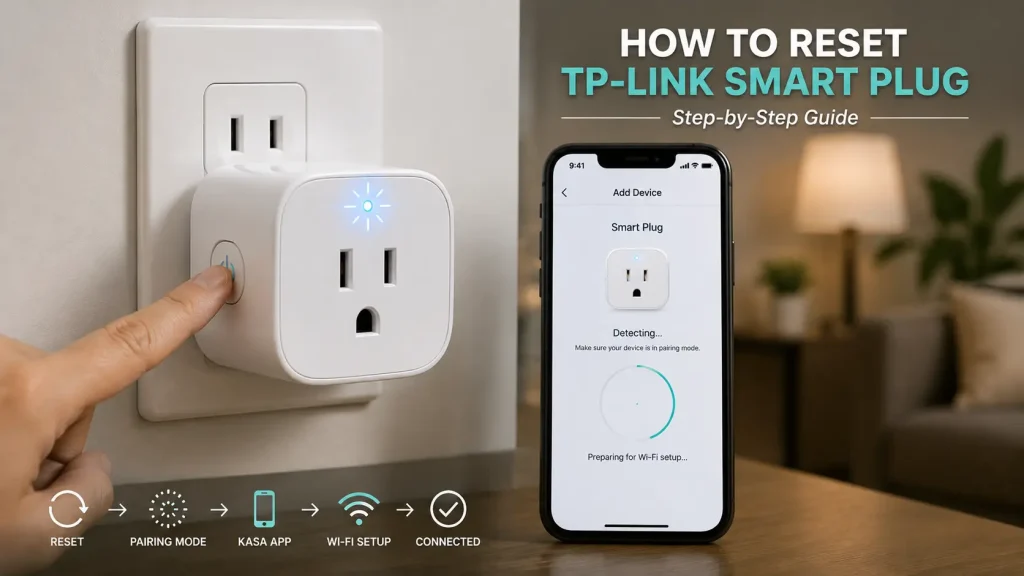
TP-Link smart plugs, including the popular Kasa Smart series, make it easy to control lights, appliances, and other household devices from anywhere using your smartphone or voice assistant. While these smart plugs are designed for reliable everyday use, they may occasionally experience Wi-Fi connection issues, pairing problems, or become unresponsive. If this happens, learning how to reset TP-Link smart plug devices is often the fastest way to restore normal operation. Whether you’re switching to a new Wi-Fi network, troubleshooting a connection problem, or preparing the device for a new owner, resetting the smart plug can help resolve many common issues.
In this guide, you’ll learn when you should reset your TP-Link smart plug, what to check before performing a factory reset, and how to reconnect the device afterward. We’ll also cover common troubleshooting tips to help you get your TP-Link smart plug working again.
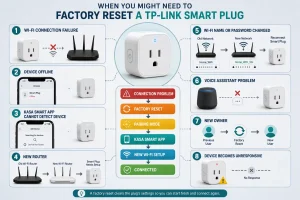
Table of Contents
- Why You May Need to Reset a TP-Link Smart Plug
- Things to Check Before Resetting
- How to Reset a TP-Link Smart Plug
- What Happens After Resetting
- How to Reconnect Your TP-Link Smart Plug
- Common Problems After Resetting
- Tips to Prevent Future Connection Issues
- Frequently Asked Questions
- Final Thoughts
Why You May Need to Reset a TP-Link Smart Plug
Your TP-Link smart plug stores Wi-Fi credentials, account information, automation settings, and device pairing data. If any of these settings become outdated or corrupted, the smart plug may stop responding or fail to connect properly.
Resetting the device clears the saved settings and restores the factory configuration, allowing you to complete the setup again.
If you’re new to TP-Link smart plugs, understanding how these devices work can help you identify whether a factory reset is actually necessary before trying more advanced troubleshooting.
Common reasons to reset a TP-Link smart plug include:
- The smart plug won’t connect to Wi-Fi.
- The Kasa Smart app cannot detect the device.
- The plug appears offline.
- Alexa or Google Assistant no longer controls the device.
- You changed your Wi-Fi name or password.
- You installed a new router.
- You’re moving the smart plug to another location.
- You’re giving the device to another user.
- The smart plug becomes unresponsive after a firmware update.
Although these problems can be frustrating, many of them can be resolved with a simple factory reset.
Things to Check Before You Reset a TP-Link Smart Plug
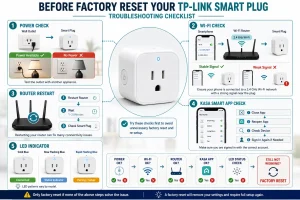
Before performing a factory reset, there are a few troubleshooting steps worth trying. In many cases, the issue can be resolved without deleting your device settings.
Confirm the Smart Plug Has Power
Make sure the TP-Link smart plug is securely plugged into a working electrical outlet. If necessary, test the outlet with another appliance to confirm it is supplying power.
Verify Your Wi-Fi Network
Most TP-Link smart plugs are designed to connect to a 2.4 GHz Wi-Fi network. If your phone is connected to a 5 GHz network during setup, the pairing process may fail.
Also verify that your internet connection is working properly.
Restart Your Router
Temporary network interruptions can prevent communication between your router and the smart plug. Restart your router and wait a few minutes before checking the device again.
Check the Kasa Smart App
Close the Kasa Smart app completely and reopen it. If the device still appears offline, sign out of your account and sign back in before attempting a reset.
Check the LED Indicator
The LED light on your TP-Link smart plug displays its current status. Depending on the model, different blinking patterns indicate pairing mode, network connection, or normal operation.
If these basic troubleshooting steps don’t solve the problem, performing a factory reset is usually the next recommended solution.
How to Reset a TP-Link Smart Plug
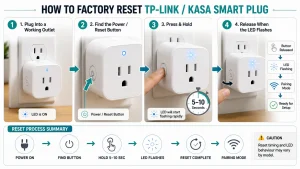
Resetting a TP-Link smart plug is a straightforward process that usually takes less than a minute. While the exact steps may vary slightly depending on the model, most TP-Link and Kasa Smart plugs use the same reset method.
Step 1: Plug the Device Into a Working Outlet
Insert your TP-Link smart plug into a powered wall outlet and wait until the LED indicator turns on.
Make sure the outlet is functioning properly before continuing with the reset process.
Step 2: Locate the Reset Button
Most TP-Link smart plugs have a power button that also functions as the reset button. Depending on the model, it is typically located on the side or front of the device.
Step 3: Press and Hold the Button
Press and hold the button for approximately 5 to 10 seconds.
Keep holding it until the LED indicator begins flashing rapidly. This indicates that the smart plug has been restored to its factory settings and is ready for setup.
Step 4: Wait for the Reset to Complete
Release the button and allow the smart plug a few moments to finish resetting.
Once the LED continues flashing, the device is ready to reconnect to your Wi-Fi network.
What Happens After Resetting?
A factory reset removes all saved information stored on the smart plug, including:
- Wi-Fi network settings
- Device pairing
- Kasa Smart account connection
- Automation schedules
- Timer settings
- Voice assistant integrations
- Device name and room assignments
The reset does not damage the hardware. It simply restores the smart plug to its original factory settings, allowing you to configure it again from the beginning.
If you’d like to understand why the device needs to be paired again after a reset, our guide on how smart plugs work explains how smart plugs communicate with your home network and mobile app.
How to Reconnect Your TP-Link Smart Plug
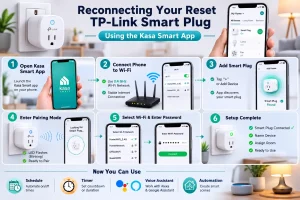
Once the reset is complete, you’ll need to reconnect the smart plug using the Kasa Smart app.
Open the Kasa Smart App
Launch the Kasa Smart app on your smartphone or tablet and sign in to your TP-Link account if necessary.
Connect Your Phone to the Correct Wi-Fi Network
Before beginning the setup, make sure your phone is connected to a 2.4 GHz Wi-Fi network, as most TP-Link smart plugs use this frequency during setup.
Add a New Device
Tap Add Device within the Kasa Smart app and choose your TP-Link smart plug model.
The app will automatically search for nearby devices that are in pairing mode.
Complete the Setup
Follow the on-screen instructions to enter your Wi-Fi password and finish pairing the device.
Once the setup is complete, you can rename the smart plug, assign it to a room, recreate schedules, and reconnect it with Alexa, Google Assistant, or other supported smart home platforms.
Common Problems After Resetting a TP-Link Smart Plug
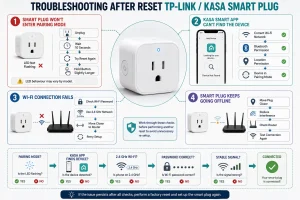
Even after a successful factory reset, you may occasionally encounter connection problems. Fortunately, most of these issues are easy to fix.
The Smart Plug Won’t Enter Pairing Mode
If the LED indicator doesn’t begin flashing, unplug the smart plug for a few seconds and try the reset process again. Hold the button slightly longer if necessary.
The Kasa Smart App Can’t Find the Device
Make sure your phone is connected to the correct Wi-Fi network and that Bluetooth or location permissions are enabled if required by your device.
The Smart Plug Won’t Connect to Wi-Fi
Verify that you’re entering the correct Wi-Fi password and that your router is broadcasting a 2.4 GHz network. Moving the smart plug closer to the router during setup may also improve the connection.
The Device Keeps Going Offline
Frequent disconnections are often caused by weak Wi-Fi coverage or network interference. Position the smart plug closer to your router or reduce obstacles between the router and the device to improve signal strength.
Tips to Prevent Future Connection Issues
Although resetting your TP-Link smart plug can solve many connection problems, following a few best practices can help prevent future issues.
- Keep your router firmware updated.
- Install firmware updates for your TP-Link smart plug whenever available.
- Maintain a stable Wi-Fi connection.
- Avoid unplugging the device unnecessarily.
- Place the smart plug within reliable Wi-Fi range.
- Give each smart plug a unique name if you use multiple devices.
- Restart your router occasionally if you notice frequent connectivity issues.
These simple maintenance steps can improve reliability and reduce the need for future factory resets.