
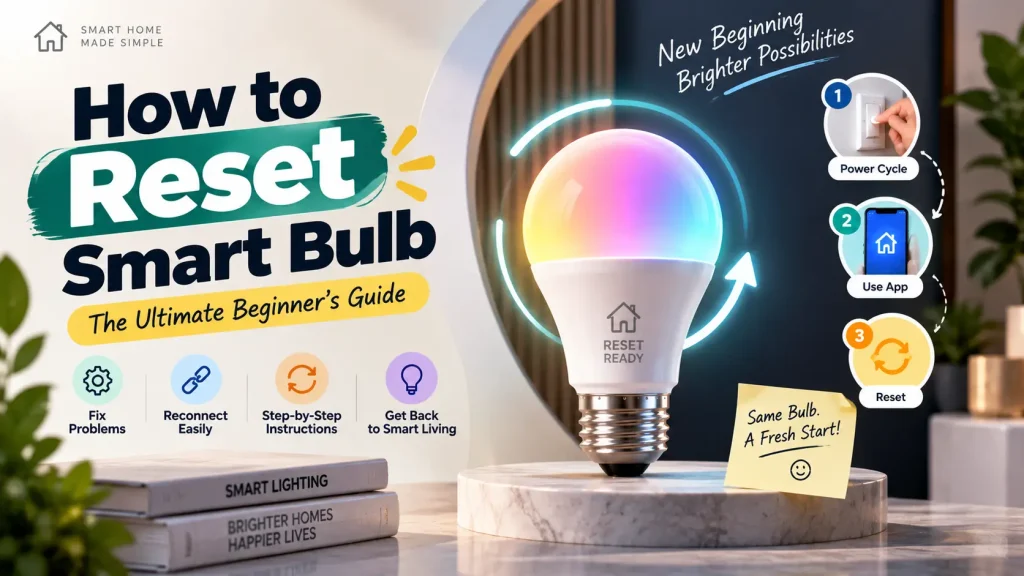
Smart bulbs make it easy to control your home’s lighting through mobile apps, voice assistants, and smart home platforms. However, there are times when a bulb may stop responding, lose its connection, or fail to pair with your Wi-Fi or Bluetooth network. In these situations, many people search for how to reset smart bulb so they can restore normal operation.
Resetting a smart bulb clears its previous settings and returns it to factory defaults. This process allows you to reconnect the bulb to your smart home system or pair it with a new device. While the reset method varies between manufacturers, the overall goal is the same: erase the old configuration and prepare the bulb for a fresh setup.
In this guide, you’ll learn when you should reset a smart bulb, the most common reset methods, what happens during a factory reset, and tips for reconnecting your bulb successfully afterward.
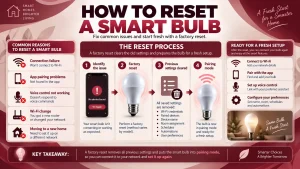
Table of Contents
- How to Reset Smart Bulb
- When Should You Reset a Smart Bulb?
- What Happens During a Smart Bulb Reset?
- How to Reset Smart Bulb Using the Power Cycle Method
- How to Reset Smart Bulb Using the Manufacturer’s App
- Common Problems After Resetting
- Frequently Asked Questions
- Final Thoughts
When Should You Reset a Smart Bulb?
Most smart bulbs work reliably for years, but certain situations may require a factory reset.
One of the most common reasons is a connection problem. If the bulb repeatedly disconnects from your Wi-Fi or Bluetooth network and troubleshooting doesn’t solve the issue, resetting the bulb often restores normal operation.
You may also need to reset the bulb when moving it to a different home or giving it to someone else. A factory reset removes the previous owner’s settings, allowing the new user to complete the setup from scratch.
Other situations where a reset may be helpful include:
- The bulb won’t pair with the mobile app.
- Voice commands are no longer working.
- The bulb doesn’t respond to schedules or automation.
- You’re changing to a new Wi-Fi network.
- The manufacturer recommends a reset after a firmware issue.
- The bulb is being added to a different smart home platform.
Before performing a reset, it’s worth checking for simple issues such as power interruptions, internet outages, or app updates, as these problems may not require a factory reset.
What Happens During a Smart Bulb Reset?
A factory reset returns the smart bulb to the same condition it was in when it first left the factory.
During the reset process, the bulb removes information such as:
- Saved Wi-Fi credentials
- Bluetooth pairing information
- Connected smart home accounts
- Automation settings
- Room assignments
- Device names
- User preferences
After the reset is complete, the bulb enters pairing mode so it can be connected to a compatible app again.
It’s important to understand that resetting the bulb does not damage the hardware or reduce its lifespan. It simply removes the stored configuration so you can perform a fresh installation.
How to Reset Smart Bulb Using the Power Cycle Method
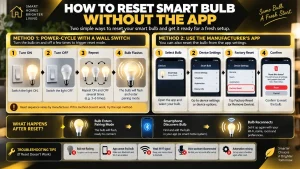
Many smart bulb manufacturers use a power cycle reset because it doesn’t require access to the mobile app.
Although the exact sequence varies by brand, the process usually involves turning the light switch on and off several times in a specific pattern.
A typical process looks like this:
- Turn the bulb on.
- Switch it off for a few seconds.
- Turn it back on.
- Repeat the on-and-off sequence several times.
- Watch for the bulb to blink or flash.
Flashing lights usually indicate that the reset was successful and the bulb has entered pairing mode.
Since every manufacturer uses a different timing sequence, it’s important to follow the instructions provided for your specific smart bulb model rather than assuming every bulb resets the same way.
How to Reset Smart Bulb Using the Manufacturer’s App
Some smart bulbs can also be reset directly through the manufacturer’s mobile app.
This option is usually available if the bulb is still connected and responding.
In most cases, the process follows these general steps:
- Open the manufacturer’s smart home app.
- Select the smart bulb you want to reset.
- Open the device settings.
- Look for an option such as Factory Reset, Remove Device, or Restore Defaults.
- Confirm the reset.
After the process finishes, the bulb will restart and enter pairing mode, allowing you to set it up again as a new device.
Using the app is often the easiest reset method because it avoids repeated power cycling and provides clear on-screen instructions.
Can You Reset a Smart Bulb Without the App?
Yes, in many cases you can.
If you’ve lost access to the manufacturer’s app, changed phones, or the bulb is no longer responding, you can often reset it using the physical light switch. Many smart bulbs are designed with a built-in factory reset sequence that works without requiring an internet connection or mobile device.
The reset process usually involves switching the bulb on and off several times in a specific pattern until it begins flashing. Once the flashing starts, the bulb is ready to be paired again.
Keep in mind that not every manufacturer uses the same reset sequence. Some brands require three power cycles, while others may require five or more. Checking your product manual or the manufacturer’s support page is the best way to confirm the correct method.
How to Reconnect Your Smart Bulb After Resetting
Once you’ve learned how to reset smart bulb, the next step is connecting it to your smart home again.
After a successful factory reset, most smart bulbs automatically enter pairing mode. You can then begin the setup process just as you did when the bulb was new.
A typical setup process includes:
Install or Open the Mobile App
Download the manufacturer’s official app if it isn’t already installed, or open the existing app on your smartphone.
Make Sure the Bulb Is in Pairing Mode
Most smart bulbs indicate pairing mode by blinking or flashing repeatedly. If the bulb isn’t flashing, the reset may not have completed successfully.
Connect to the Correct Network
If your smart bulb uses Wi-Fi, ensure your phone is connected to the same network that the bulb will use. Many smart bulbs only support 2.4 GHz Wi-Fi during setup.
Follow the on-screen instructions.
The app will search for nearby devices and guide you through the remaining setup process, including assigning the bulb to a room and giving it a name.
Test the Connection
After setup is complete, turn the bulb on and off using the app to confirm everything is working correctly before adding schedules or automation.
Common Problems After Resetting a Smart Bulb
Sometimes a factory reset doesn’t solve the issue immediately. If your smart bulb still isn’t working properly, consider the following possibilities.
The Bulb Won’t Enter Pairing Mode
If the bulb doesn’t flash after the reset sequence, try repeating the process more carefully. Timing is important, and missing one step may prevent the reset from completing.
The App Cannot Find the Bulb
Check that Bluetooth or location services are enabled if the app requires them. Also confirm that your phone is connected to the correct Wi-Fi network.
The Bulb Keeps Disconnecting
Frequent disconnections may be caused by a weak Wi-Fi signal, router settings, or network congestion rather than the bulb itself. Moving the router closer or improving wireless coverage may help.
Voice Assistants Stop Working
After resetting the bulb, it may need to be linked again to services such as Google Home, Amazon Alexa, or Apple Home before voice commands will function normally.
Automation Is Missing
A factory reset removes previous schedules, scenes, and automation routines. These will need to be created again after reconnecting the bulb.
Tips Before You Reset a Smart Bulb
Resetting should usually be your last troubleshooting step rather than the first.
Before performing a factory reset, try these simple checks:
- Make sure the light switch is turned on.
- Restart the smart home app.
- Confirm your Wi-Fi connection is working properly.
- Check whether the manufacturer has released a firmware update.
- Restart your router if multiple smart devices are having connection problems.
- Verify that the bulb is receiving power.
Trying these basic troubleshooting steps can often solve the problem without removing your existing settings or automation.
Does Resetting a Smart Bulb Delete Everything?
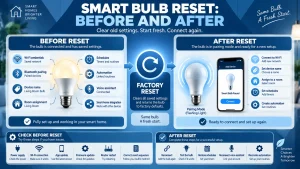
Yes. A factory reset removes the stored information inside the smart bulb and restores its default settings.
After resetting, information such as the following is erased:
- Wi-Fi network details
- Bluetooth connections
- Device name
- Room assignments
- Automation routines
- Timers and schedules
- Smart home integrations
Because these settings are removed, you’ll need to complete the setup process again before using the bulb with your smart home.
For many users, a factory reset is the quickest way to fix persistent connection issues or prepare the bulb for use in a new home.
Frequently Asked Questions
How to reset smart bulb if it won’t connect?
If your smart bulb won’t connect, start by checking that it has power and is in pairing mode. If the problem continues, perform a factory reset using the manufacturer’s recommended reset method. Once the bulb has been reset, reconnect it through the official app and follow the setup instructions.
Can I reset a smart bulb without the manufacturer’s app?
Yes. Many smart bulbs can be reset using the light switch by turning the bulb on and off several times in a specific sequence. The exact process varies by manufacturer, so it’s best to follow the instructions for your particular model.
Will resetting a smart bulb delete my settings?
Yes. A factory reset removes saved Wi-Fi information, Bluetooth pairings, automation routines, schedules, room assignments, and other customized settings. After the reset, you’ll need to set up the bulb again as if it were new.
Why is my smart bulb flashing after a reset?
A flashing smart bulb usually indicates that it has successfully entered pairing mode. This means the bulb is ready to be discovered by the manufacturer’s app and connected to your smart home network.
How long does it take to reset a smart bulb?
Most smart bulbs can be reset within a few minutes. The actual reset process usually takes less than one minute, while reconnecting the bulb through the app may take a few additional minutes depending on your Wi-Fi connection.
Why won’t my smart bulb reset?
If your smart bulb doesn’t reset, the power cycle sequence may not have been performed correctly. Check that the bulb is receiving power and carefully repeat the manufacturer’s recommended reset procedure. If the issue continues, consult the product manual or the manufacturer’s support resources.
Common Mistakes to Avoid When Resetting a Smart Bulb
Learning how to reset smart bulb is straightforward, but a few common mistakes can prevent the reset from working properly.
Using the Wrong Reset Sequence
Every manufacturer uses its own factory reset method. Following instructions for a different brand may not work, so always use the correct reset procedure for your specific model.
Turning the Switch On and Off Too Quickly
Power cycling often requires a specific timing pattern. Switching the light too quickly or waiting too long between cycles may prevent the bulb from entering pairing mode.
Forgetting to Remove the Old Device
Some smart home apps require you to remove the existing bulb before adding it again. Skipping this step may cause pairing problems.
Connecting to the Wrong Wi-Fi Network
Many smart bulbs only support 2.4 GHz Wi-Fi during setup. Make sure your smartphone is connected to a compatible network before attempting to reconnect the bulb.
Resetting Before Trying Basic Troubleshooting
A factory reset should usually be the last troubleshooting option. Restarting your router, updating the app, or checking the bulb’s power supply may solve the issue without deleting your settings.
Tips for Keeping Your Smart Bulb Working Properly
After successfully resetting and reconnecting your smart bulb, a few simple habits can help prevent future connection problems.
- Keep your smart home app updated to the latest version.
- Install firmware updates whenever they become available.
- Maintain a stable Wi-Fi connection with good signal strength.
- Avoid switching the wall switch off if you regularly use smart controls.
- Review your automation and schedules occasionally to ensure they still meet your needs.
Regular maintenance helps your smart bulb stay connected and operate reliably over time.
Final Thoughts
Knowing how to reset a smart bulb can save time when you’re dealing with connection problems, changing Wi-Fi networks, or setting up the bulb in a new home. A factory reset removes the previous configuration and restores the bulb to its default settings, making it ready for a fresh installation.
Although the reset process differs between manufacturers, most smart bulbs can be reset either through the official mobile app or by using a simple power cycle with the wall switch. Following the correct reset method and reconnecting the bulb through the manufacturer’s app usually restores normal operation within a few minutes.
If your smart bulb continues to experience issues after a reset, checking your Wi-Fi network, updating the firmware, or reviewing the manufacturer’s troubleshooting guide can often help identify the cause.
To continue learning about smart lighting, explore our related guides:
- What Is a Smart Bulb?
- How Do Smart Bulbs Work?
- How Do Smart Light Bulbs Work?
- Do Smart Bulbs Use More Electricity?
- Do Smart Bulbs Use Electricity When Off?
These articles provide practical advice to help you get the most from your smart lighting system and build a more reliable smart home.