
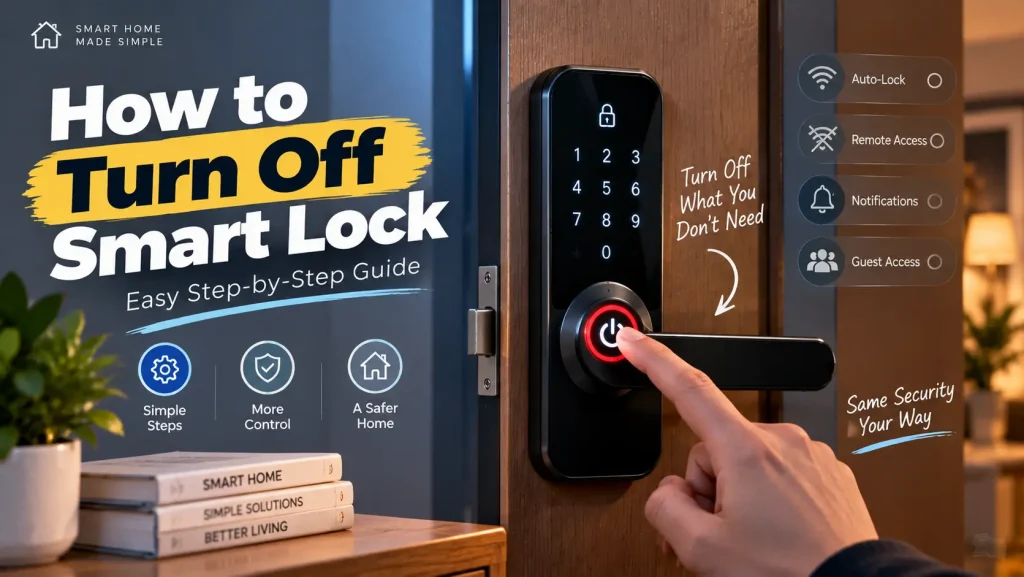
Smart locks make it easy to control access to your home using mobile apps, PIN codes, fingerprints, and smart home integrations. While these features offer flexibility, there are times when you may want to change how the lock operates. Many homeowners search how to turn off smart lock when troubleshooting connection problems, updating settings, replacing batteries, preparing the lock for a reset, or simply changing their security preferences.
The process varies depending on the manufacturer and model. Some devices let you manage settings through a companion app, while others rely on a keypad or built-in programming menu. In most situations, you don’t need to disable the entire lock. Instead, you can turn off individual features while keeping the main locking functions available.
This guide explains the different options, when they may be useful, and the important points to consider before making any changes.
Table of Contents
- How to Turn Off Smart Lock
- Why You May Need to Turn Off a Smart Lock
- How to Turn Off Smart Lock Features
- How to Turn Off Smart Lock Auto-Lock
- How to Turn Off Smart Lock Remote Access
- Things to Know Before You Turn Off a Smart Lock
- How to Turn Off Smart Lock? Frequently Asked Questions
- Final Thoughts on How to Turn Off Smart Lock
How to Turn Off Smart Lock
Most smart locks are designed to let you manage individual settings instead of switching off the entire device. This approach gives you more control while allowing the lock to continue protecting your home.
Depending on your model, settings are usually managed through one or more of the following:
- Manufacturer’s mobile application
- Built-in keypad
- Programming menu
- Smart home platform
- Wireless connection settings
Although every manufacturer uses a slightly different interface, the overall process is very similar. You simply locate the feature you want to change, adjust the setting, save the changes, and confirm that the lock behaves as expected.
It’s also worth remembering that disabling one function doesn’t usually affect the others. For example, turning off remote access normally doesn’t stop the keypad, fingerprint reader, Bluetooth connection, or backup key from working.
Before making any changes, review the available settings carefully. Understanding what each option controls makes it much easier to customize the lock without accidentally disabling a feature you still rely on every day.
Some manufacturers also include helpful descriptions inside their mobile applications. Taking a moment to read those explanations can prevent unnecessary troubleshooting later and help you choose the most appropriate setting for your home.
Why You May Need to Turn Off a Smart Lock
Every household uses a smart lock differently. While some homeowners use every available feature, others prefer a simpler setup with only the functions they need.
Below are some of the most common reasons people adjust their lock settings.
Troubleshooting Connection Problems
If the device suddenly stops responding or struggles to communicate with your smartphone, temporarily disabling certain functions can help isolate the cause.
Once the issue has been resolved, those features can usually be enabled again without affecting existing access codes or authorized users.
Changing Security Preferences
Not everyone wants remote control or automatic unlocking enabled at all times.
Some homeowners prefer unlocking the door manually using a keypad or physical key, while others choose to limit internet-based features to reduce unnecessary connectivity.
Changing individual settings allows the lock to match your preferred level of convenience and security.
Performing Routine Maintenance
Routine maintenance is another common reason for adjusting lock settings.
Tasks such as replacing batteries, cleaning the lock, checking the mounting hardware, or updating firmware sometimes require temporary changes before normal operation resumes.
Following the manufacturer’s recommendations during maintenance helps reduce the risk of unexpected behavior afterwards.
Updating Your Smart Home
Many connected locks work alongside smart home hubs, voice assistants, cameras, alarms, and automation platforms.
If you’re changing your smart home ecosystem or replacing connected devices, you may need to remove certain integrations before reconnecting the lock to a new platform.
Doing so helps avoid duplicate connections and communication conflicts between devices.
Managing Notifications
Modern locks can send notifications whenever someone locks or unlocks the door, enters an access code, or when the battery becomes low.
Although these alerts can be useful, not everyone wants constant notifications throughout the day.
Fortunately, most companion apps allow you to customize exactly which alerts you receive, making it easier to reduce unnecessary notifications while keeping important security updates enabled.
Preparing for a Factory Reset
If you’re planning to sell the lock, move it to another property, or start over with a fresh installation, you’ll often need to disconnect connected accounts before performing a factory reset.
Completing these steps first helps protect your account information and makes setup much easier for the next user.
Simplifying Everyday Use
As your household changes, the way you use your smart lock may change as well.
Features that seemed useful during the initial setup may no longer fit your routine months later. Reviewing the available settings occasionally helps keep the lock configured exactly the way you want.
Some families also discover that fewer active features create a simpler day-to-day experience, particularly if several people use the same entrance every day.
How to Turn Off Smart Lock Features
Modern smart locks are designed to give you control over individual settings rather than forcing you to disable the entire device. This makes it possible to customize the way the lock operates while continuing to use its primary security functions.
Depending on the manufacturer, these options are usually available through the mobile application, keypad, web dashboard, or built-in programming menu. Although the names of the settings may vary, the purpose of each feature is generally the same.
Before changing any option, make sure you understand what it does and how it may affect your everyday routine.
Turn Off Smart Lock Auto-Lock
Auto-lock is one of the most commonly used features because it locks the door automatically after a selected period. This helps prevent the door from accidentally being left unlocked.
However, there are situations where manual locking is more convenient, especially if people frequently move in and out of the house during the day.
To disable auto-lock, you’ll normally need to:
- Open the manufacturer’s app.
- Select your smart lock.
- Open Settings.
- Find the Auto-Lock option.
- Turn the feature off.
- Save the new settings.
After making the change, test the door several times to confirm the new configuration has been applied correctly.
Turn Off Smart Lock Auto-Unlock
Some models can unlock automatically when they detect an authorized smartphone nearby. While this can make arriving home easier, some homeowners prefer to unlock the door themselves.
Turning off automatic unlocking doesn’t normally affect other entry methods. You can usually continue using the following:
- PIN codes
- Fingerprint recognition
- Bluetooth
- NFC (where supported)
- Physical backup keys
Review your available access methods after changing the setting so everyone in your household knows which options remain active.
Turn Off Lock Notifications
Most connected locks can send notifications whenever important activity occurs.
Common alerts include:
- Door locked
- Door unlocked
- Access code used
- Failed entry attempts
- Low battery warnings
- Firmware update reminders
Instead of disabling every notification, consider keeping important security alerts enabled while turning off informational messages you no longer need.
This approach reduces unnecessary notifications without limiting important updates.
Turn Off Smart Lock Guest Access
Many smart locks integrate with Google Assistant, Amazon Alexa, Apple HomeKit, or other smart home platforms.
If you stop using one of these services, you can remove the connection without affecting the lock itself.
Disconnecting a voice assistant simply removes voice control. Other unlocking methods generally continue working normally.
Delete Temporary User Access
Many smart locks allow temporary PIN codes for guests, contractors, cleaners, or delivery personnel.
If those codes are no longer required, delete them individually rather than changing your primary security settings.
Reviewing temporary users every few months is a good habit because it ensures only authorized people continue to have access.
Turn Off Smart Lock Wireless Connections
Some locks support multiple communication methods, including:
- Wi-Fi
- Bluetooth
- Zigbee
- Z-Wave
- Matter
- Thread
If one connection method is no longer required, it can often be disabled while allowing the others to remain active.
Checking your manufacturer’s documentation will help you understand which wireless connections are essential for your particular model.
How to Turn Off Smart Lock Auto-Lock
Auto-lock improves convenience by securing the door automatically after it closes. While many homeowners rely on this feature every day, others prefer complete manual control.
Although the exact steps vary slightly between manufacturers, the process is generally straightforward.
- Launch the companion application.
- Select your connected lock.
- Open the settings menu.
- Locate Auto-Lock.
- Switch the feature to Off.
- Save the updated configuration.
Some manufacturers also allow auto-lock to be changed directly from the keypad using programming commands.
After completing the change, test the lock several times by opening and closing the door. This confirms that the new settings have been applied successfully.
If multiple family members use the property, let everyone know that automatic locking has been disabled so they remember to lock the door manually when leaving.
You should also check whether any smart home automations depend on auto-lock. Some routines may need updating after the feature has been disabled.
How to Turn Off Smart Lock Remote Access
Remote access allows you to lock, unlock, monitor activity, and manage user permissions from almost anywhere with an internet connection.
Although this feature is useful, some homeowners prefer local control only.
Most manufacturers provide several ways to disable internet-based access.
Common options include:
- Disconnecting the lock from Wi-Fi
- Removing the smart home hub
- Signing out of cloud services
- Disabling remote management in the app
- Removing third-party integrations
After remote access has been disabled, local unlocking methods usually continue working without interruption.
These commonly include:
- PIN codes
- Bluetooth
- Fingerprints
- NFC
- Physical backup keys
Only cloud-based control is normally affected.
If you decide to enable remote management again in the future, simply reconnect the device using the manufacturer’s setup process.
Things to Know Before You Turn Off a Smart Lock
Before changing any settings, it’s important to understand how those adjustments may affect both convenience and security.
Understand What Each Feature Does
Every setting serves a different purpose.
Some improve convenience, while others contribute directly to the lock’s security or automation capabilities.
Learning what each option controls before making changes reduces the chance of accidental configuration problems.
Tell Other Household Members
If several people regularly use the lock, inform them before changing important settings.
This prevents confusion if automatic unlocking, remote access, or another familiar feature suddenly becomes unavailable.
Check Existing Smart Home Automations
Many smart locks work together with cameras, lights, alarms, doorbells, and other connected devices.
Changing one setting may affect existing automations, so review your routines before disabling any major feature.
Install Firmware Updates
Keeping firmware updated improves compatibility, security, and overall reliability.
If you’re experiencing unusual behavior, installing the latest software may solve the problem without requiring additional configuration changes.
Follow the Manufacturer’s Instructions
Every lock has different menus, terminology, and programming methods.
Using the official instructions for your specific model helps ensure settings are changed correctly and reduces the risk of unexpected issues.
Test Every Unlocking Method Afterwards
Once you’ve finished making changes, test every access method you intend to keep using.
Confirm that the keypad, fingerprint reader, Bluetooth connection, mobile app, and physical backup key all continue working correctly before relying on the lock every day.
How to Turn Off Smart Lock? Frequently Asked Questions
How Do You Turn Off Smart Lock Features?
Most smart locks let you disable individual features through the companion app, keypad, or programming menu. The exact steps depend on the manufacturer and model.
Can I Turn Off Auto-Lock Without Disabling the Entire Lock?
Yes. Most smart locks allow you to turn off auto-lock while keeping all other locking and unlocking functions active.
Can I Disable Remote Access?
Yes. Remote access can usually be disabled through the manufacturer’s app or by disconnecting the lock from your Wi-Fi network or smart home hub.
Will Turning Off Certain Features Reduce Security?
It depends on the feature. Some settings affect convenience, while others may influence your daily security routine.
Can I Still Unlock My Door Normally?
Yes. Most locks continue supporting PIN codes, fingerprints, Bluetooth, or physical backup keys after individual features are disabled.
Can I Enable the Features Again Later?
Yes. Most features can be turned back on through the same settings menu whenever you need them.